Station (JobSlot)
A separate menu tab with the corresponding entries is visible for each station. These are used to control and parameterise the station.
Panel 'Program'
All functions for interacting with the loaded programme are integrated in this panel.
| Name | Description | ||
|---|---|---|---|

|
Acquisition settings | Opens the image capture window of the camera(s). | |

|
Sequence |
Opens the sequence with all tools and enables access to the individual tools. Information: In EasyFeeder mode, this point is disabled for security reasons, as all changes are made automatically by the 'Teach-in component' wizard. |
|

|
Save |
Saves changes to the current programme. An arrow to the right of the symbol opens a submenu with additional functions. |
|

|
Clear flag | This option resets the internal identification for the unsaved programme. | |

|
Set as start program | Activates the current programme as the start programme. This will activate it automatically the next time the system is started. | |

|
Save |
Indicates that the test programme contains changes that have not yet been saved. In this state, it is not possible to change the test programme externally (PLC, robot). |
|

|
Layout | The appearance of the station display can be changed in the layout settings. | |

|
Live | Opens the live image window for the active camera. Further information under Camera setup. | |

|
Offline | Indicates that the station is offline. Clicking on this item attempts to switch the station online. | |

|
Online | Indicates that the station is online. Clicking on this point attempts to switch the station offline. | |
Panel 'Program management'
All functions for managing the test programmes are integrated in this panel.
| Name | Description | |
|---|---|---|

|
Programme change | Provides a list of all programmes and allows you to change the active programme manually. |

|
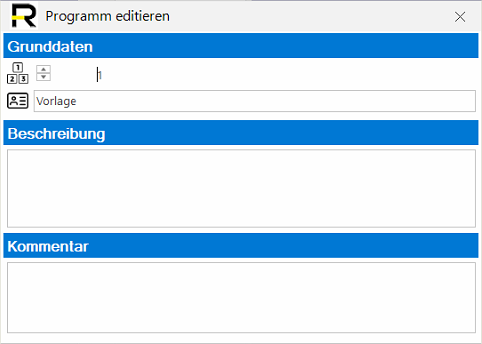
Edit | Allows you to change the programme data such as number, name, description and comment. |

|
Duplicate | Duplicates the current programme and selects it automatically. |

|
Delete | Deletes the current programme. |
Change existing programme:
Panel 'Manual trigger'
This panel contains manual image capture using reporting and the simulation of this.
| Name | Description | |
|---|---|---|

|
Recording stopped | The temporary recording of data using reporting is deactivated. |

|
Recording active | Activates the temporary recording of data using reporting for the next 100 images. |

|
Simulation | Starts/stops the simulation of checks using reporting data records. |

|
TestRun | Opens the TestRun window. TestRun can be used to verify the quality of the test program using the IO/NIO database. |

|
Back | This option is only active during the simulation and allows you to switch back to the previous data set. |

|
Next | In camera mode (recording via software must be active in the camera), an image is recorded and analysed manually. If simulation is active, the system switches to the next data set. |