WebHMI
WebHMI allows you to monitor all connected stations using a standard web browser. The start page shows all available stations at a glance in the form of freely arrangeable tiles.
Accessing in the browser
WebHMI can only be accessed via a secure HTTPS connection. The address consists of the IP address of the computer and port 8080:
-
https://127.0.0.1:8080 (local access on the same computer)
-
https://<IP address of the computer>:8080 (access from the network)
Information: If port 5000 is accidentally accessed without HTTPS, you will be automatically redirected to the secure connection. No manual changes are necessary.
Information: WebHMI runs as a separate program in the background. It does not close automatically when EasySightPro® is closed. If necessary, it can be closed manually via the Task Manager.
The station overview
After opening WebHMI, the start page appears with all configured stations. Each station is displayed as a separate tile. The tile shows the name of the station in the title bar and the current camera image below it.
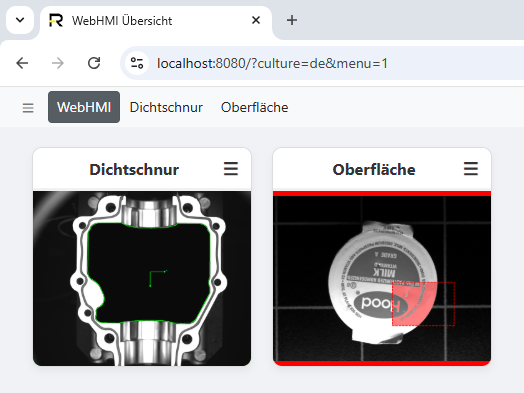
When first called up, the tiles are automatically arranged side by side. Once the arrangement has been changed manually, this arrangement is retained even after restarting the browser.
Customizing tiles
Move
A tile can be dragged to any position on the screen by clicking and holding the title bar (upper area with the station name). After releasing, the tile automatically snaps to the nearest grid point. The new position is saved immediately.
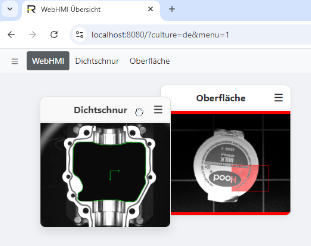
Resize
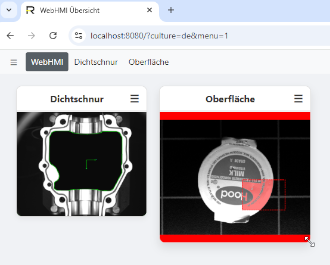
There is a small handle in the lower right corner of each tile. You can adjust the size of the tile by clicking and dragging this handle. Here, too, the size automatically snaps into place when you release the handle and is saved.
Operation on touch devices
The WebHMI can also be fully operated on tablets and touch screens. Moving and enlarging the tiles works with a single finger just as it does with a mouse. To open the detailed view, simply tap the camera image briefly.